- Create a new Campaign Template: Navigate to Campaign > New Campaign.
- Campaign Name: input a name for your template at the top
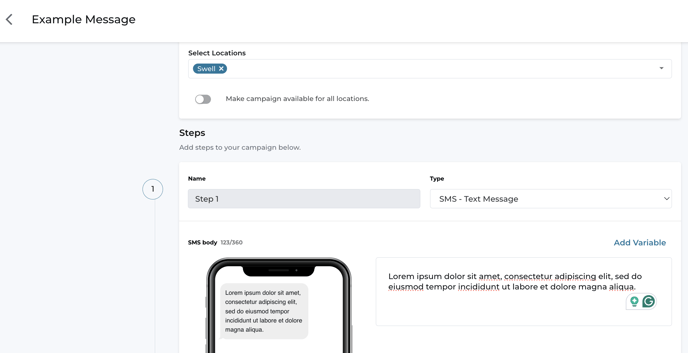
- Select Locations: Choose the location(s) this campaign will be available for.
- Next, you'll need to decide if you want to send the campaign as a single message or as multiple delayed messages that will go out in a sequence.
- Choose the message type: Under "Steps," select the type of message you would like to send. This can be either SMS (text message), Email, or you can select another template, such as a review invite.
- Add or Update Message Content: Add the text you want to include in the message body.
- Add an Image (Optional): If desired, you can add an image by dragging it into the "Image" box or clicking to select the image file.
- Add Follow-Up Messages (Optional): To add follow-up messages, click Add Step, and set the number of days you want to delay the message from the start of the campaign.
- If the delay is set to 0, the message will be sent immediately.
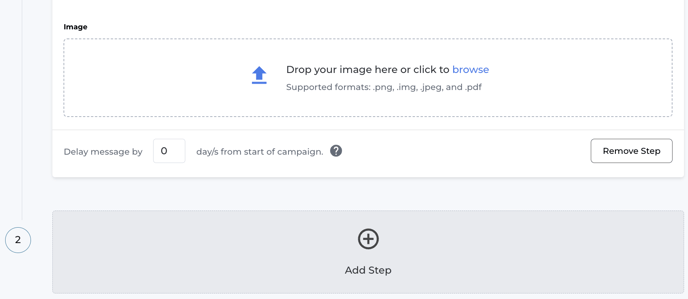
- If the delay is set to 0, the message will be sent immediately.
- Click Save Campaign to finish.
- Send your Campaign: Follow the steps in this article to send your campaign message.
English
![Swell_Logo_Magenta.svg]](https://support.swellcx.com/hubfs/Swell_Logo_Magenta.svg)