![Swell_Logo_Magenta.svg]](https://support.swellcx.com/hubfs/Swell_Logo_Magenta.svg)
What are Segments?
Segments are predefined groupings of locations, brands, or a combination of both. They make reporting cleaner, faster, and more consistent, especially in organizations with dozens or hundreds of reporting entities.
Why use Segments?
Segments help you:
-
Save time by reusing the same grouping instead of manually filtering each time
-
Ensure consistency so everyone is reporting on the same set of locations
-
Simplify complexity if your organization has many brands, service lines, or markets
-
Improve collaboration by creating shared “lenses” for analysis
Common Use Cases
-
Grouping major regions (e.g., Northeast, Southeast, West)
-
Grouping service lines or specialties across multiple sites
-
Creating leadership portfolios (e.g., all sites overseen by a specific supervisor)
-
Grouping brands
-
Creating a standard enterprise view used across recurring reports
Who Can Create and Use Segments?
Only enterprise admins can create and manage segments. All users can use segments in reporting.
Using Segments
- Click the Segments filter located at the top of a report.
- Select one or multiple segments to filter your report data.
- Click outside the Segments dropdown to close the filter. Your report should refresh to reflect the new dataset.
You can also utilize segments in report subscriptions.
Creating Segments
To create or edit a segment, you must be an enterprise admin.
- Navigate to Segments and click the Create Segment button. Alternatively, you can open a Segments filter on a report and click the + New Segment option at the bottom of the dropdown.
- Enter a Name and optional Description to identify your segment.
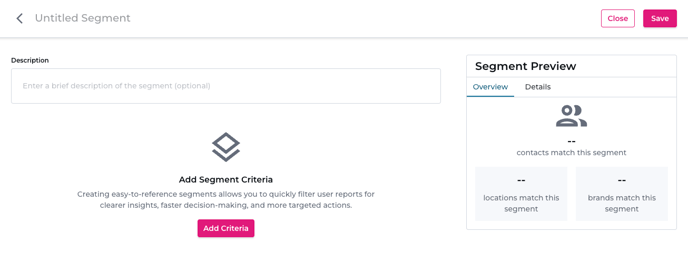
- Click the Add Criteria button.
- Select the type of criteria you wish to utilize to begin building the segment.
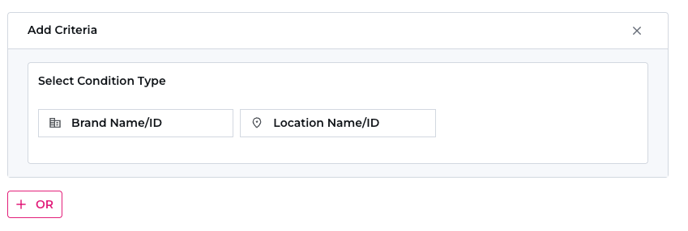
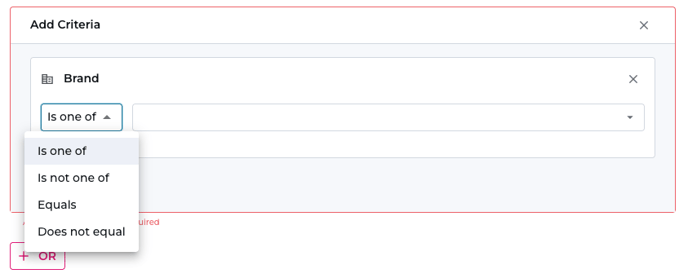
- Select a match condition. Match conditions provide instructions on whether something should be included, excluded, or matched exactly in your segment. Options include:
- Is one of: selects items that match any of the values you choose
- Is not one of: excludes items that match any of the values you choose
- Equals: selects items that match exactly the single value you specify
- Does not equal: excludes items that match exactly the single value you specify
6. Add additional blocks of criteria as desired. When adding additional criteria, you have two options:
a. AND: All criteria must be true for an item to be included in a segment
b. OR: Only one of the criteria need to be true for an item to be included in a segment